
Guide
Learn the lock, then pick it.
Learn the plate positions and links, then solve Gothic 1 Remake locks. You can also build and share custom locks or practice with generated ones.
Puzzle model
How the puzzle works
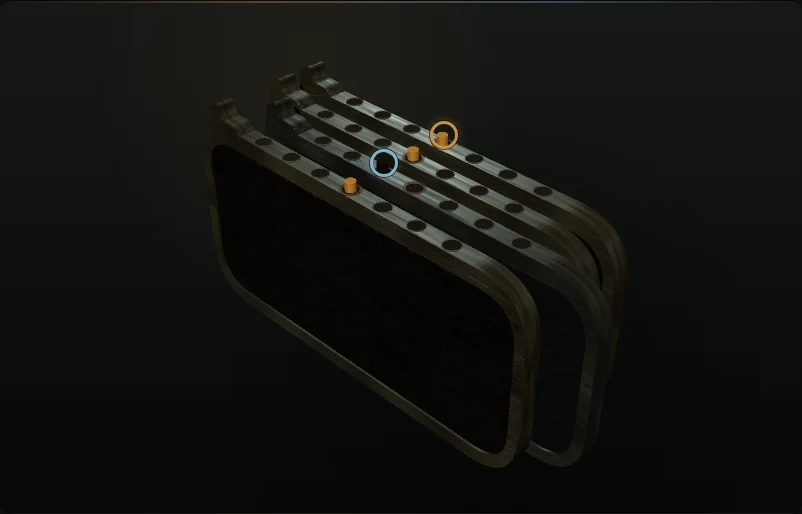
Each lock has four to seven plates, and each plate has seven positions. Position 4 is the target.
The raised pin shows each plate's position. Use Up/Down or W/S to select a plate, then Left/Right or A/D to move it. You can also click or tap a plate and use the on-screen controls. Center every pin to open the lock.
Moving one plate may move others in the same or opposite direction. The move is blocked if any affected plate would pass position 1 or 7.
Solving
How to approach a lock
There is no universal shortcut for a lock with many linked plates. First learn which plates move together.
Move one plate and watch the others. A plate at position 1 cannot move farther left; a plate at 7 cannot move farther right.
Save plates that move alone for final adjustments. An opposite link moves the affected plate in the opposite direction.
Configuration
Build the lock you see
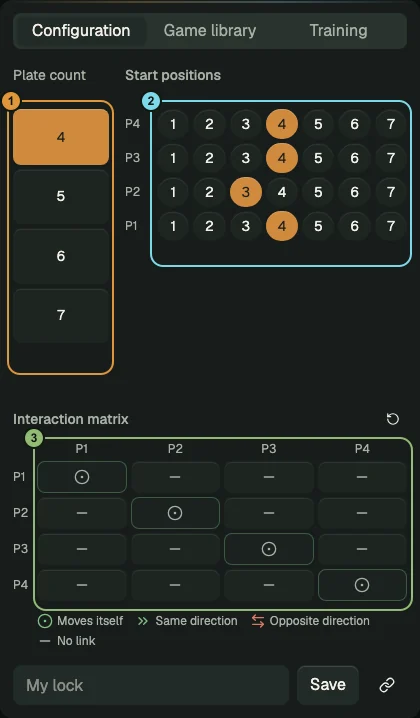
Choose four to seven plates, then enter their visible starting positions. Position 4 is the center.
In the matrix, each row is a moved plate and each column is an affected plate. The diagonal is fixed because every plate moves itself.
Click or tap an off-diagonal cell to cycle through No link, Same direction, and Opposite direction. The legend identifies each state.
The picker checks solvability as you edit. Save the lock in this browser or copy a link to it.
Sharing
Share a lock or a solution
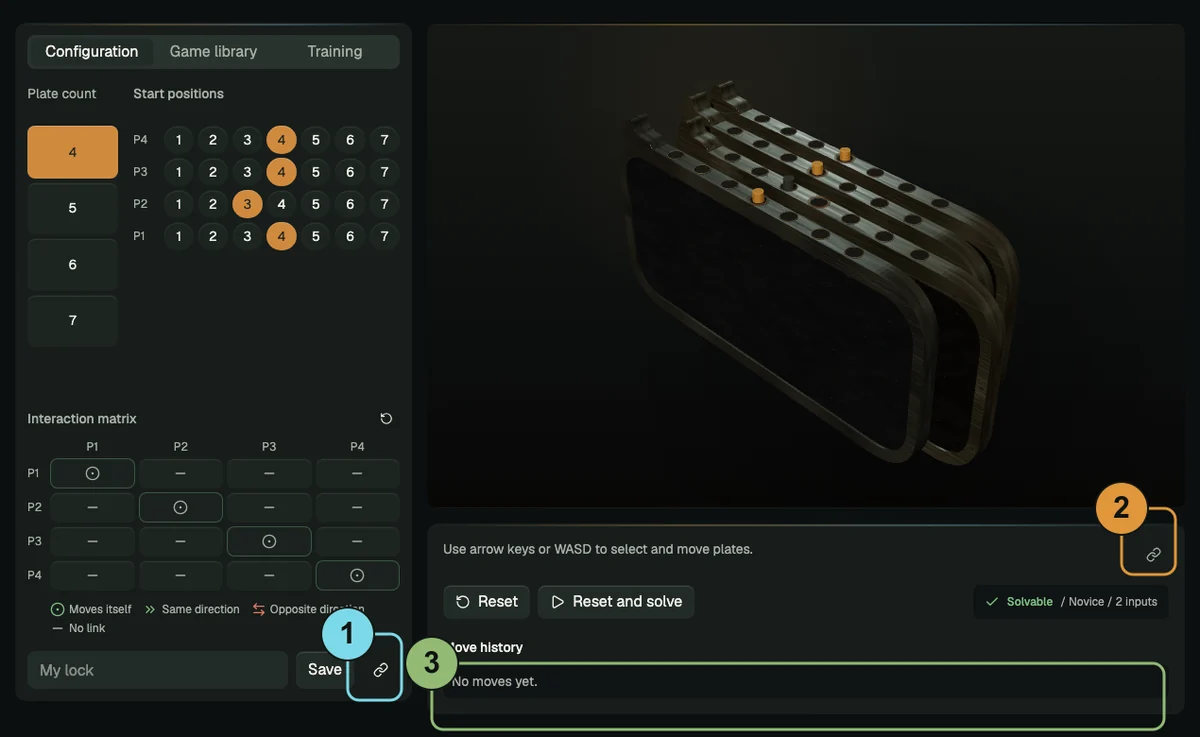
A lock link opens the configured lock at its starting positions. Use it to share or bookmark a lock.
After your first input, a moves link preserves the selected plate, current positions, and full input history. Use it to share or continue a route.
Saved locks and training stats remain in this browser and are not included in shared links.
- Lock link
- Opens the configured lock from the start.
- Moves link
- Restores the current state and recorded inputs.
Library
Browse documented locks
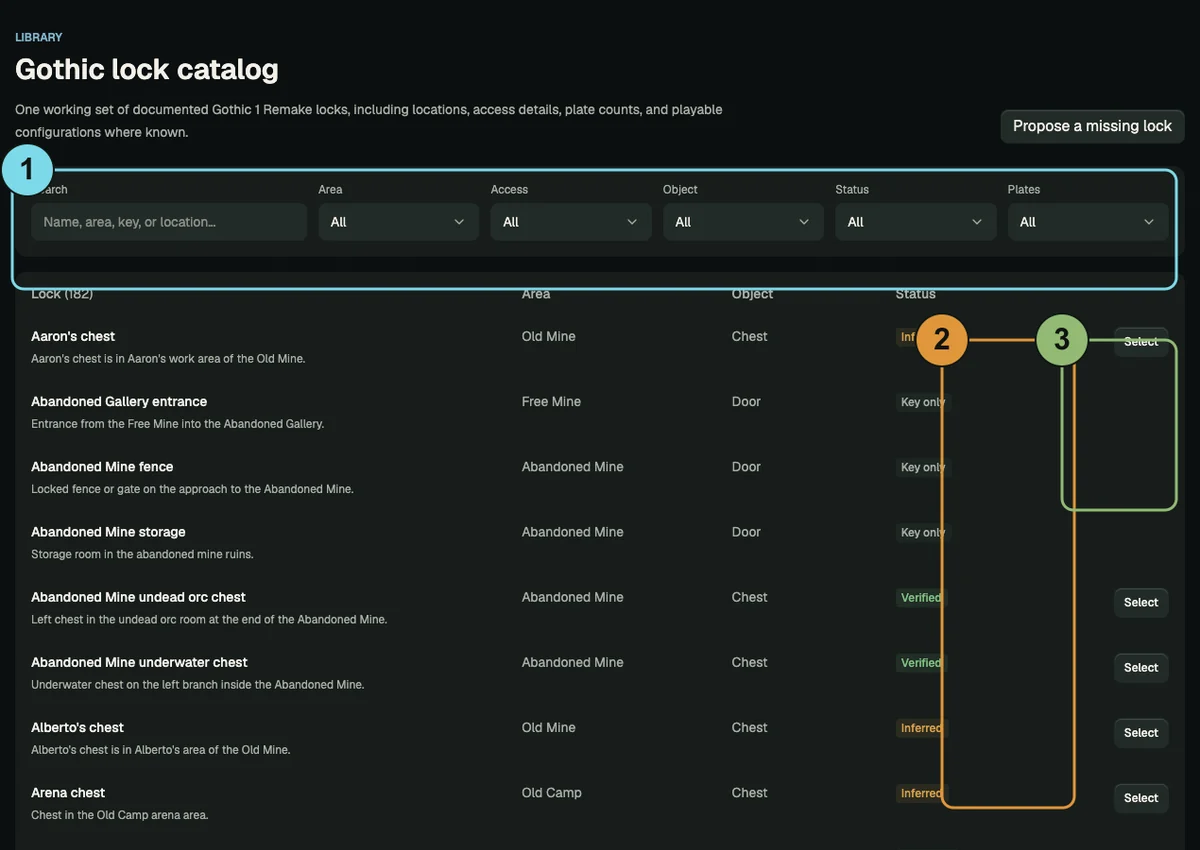
Search by name, area, key, or location. Filter by area, access, object, status, or plate count.
Status badges distinguish verified and inferred configurations, partial records without a complete matrix, and key-only locks.
Select a playable entry to open it in the picker.
Training
Practice with generated locks
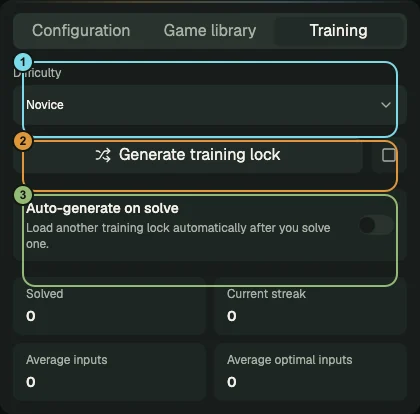
Choose a difficulty and generate a solvable practice lock. If the generator cannot find a match for the selected difficulty, it returns a solvable fallback and warns that the constraints were relaxed.
Use the square Cancel generation button to stop the search. Auto-generate on solve loads another lock after each success.
Local stats track solved locks, the current streak, average inputs, average optimal inputs, and recent attempts.
Guide
Frequently asked questions
- How does Gothic lockpicking work?
- Move linked plates until every pin reaches position 4 without pushing any plate outside positions 1–7.
- Can I share a lock or solution?
- Yes. Lock links preserve the configuration. Moves links also preserve the selected plate, current positions, and full input history.
- Does the solver always find the shortest route?
- Yes. When a solution exists, the solver returns a shortest safe route measured in inputs, including plate selections.